
MyProjectSales Subscription
Prerequisites
- User access: the Baucore_MyProjectSales permission set and a MyProjectSales feature license.
- Provider readiness: the connection, user assignment, synchronization options, and mappings described in MyProjectSales Setup must be complete.
- Activate Scheduler: the scheduler must be activated in MyProjectSales Setup → Options.
- Saved criteria: create search criteria in MyProjectSales Research before configuring a user-managed subscription.
- Background processing: an administrator must activate the MyProjectSales scheduler for subscriptions to run automatically.
Setup and verification (for admins)
- Complete MyProjectSales connection, mapping, and user assignment in MyProjectSales Hub Settings.
- In Options, activate the MyProjectSales Scheduler.
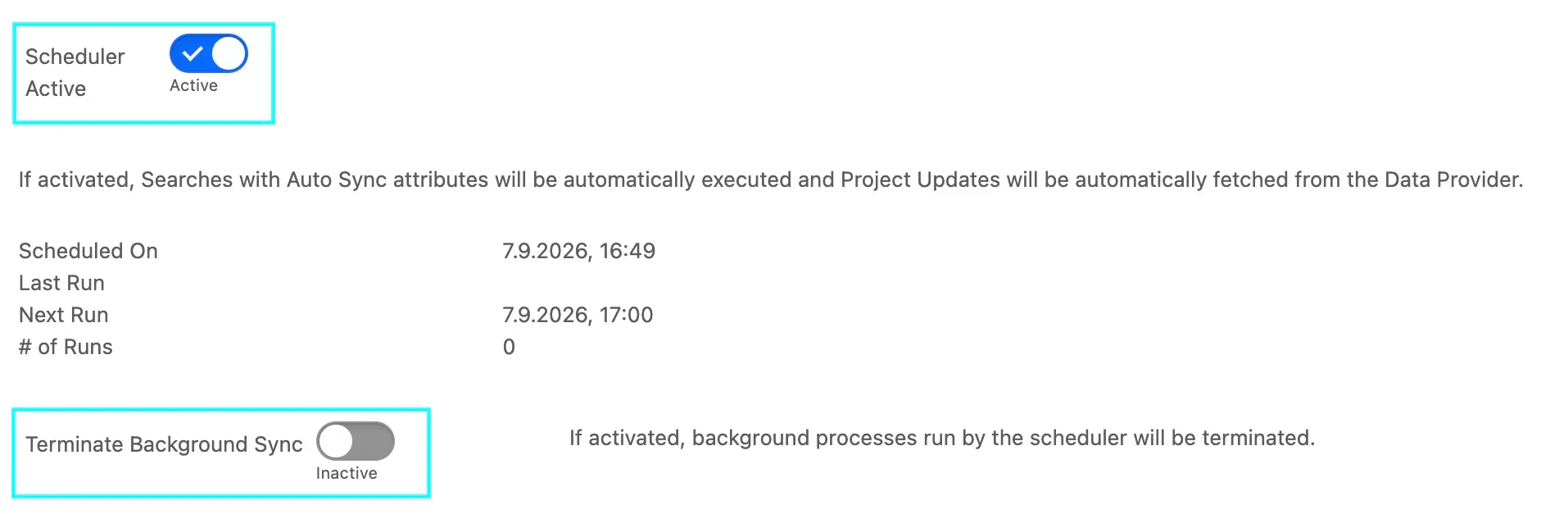
- Confirm Terminate Background Sync is off when automatic processing should run.
- Sign in as a standard user and create a narrow saved search in Research.
- Reopen Subscriptions and verify the saved values.
- After the scheduled execution, review Last Run and the affected linked record.
Scheduler Active
Enable Scheduler Active to run saved searches that use Auto Sync and to retrieve project updates from MyProjectSales automatically. When the scheduler is active, the status area shows:
- Scheduled On — when the current scheduler job was created.
- Last Run — when the scheduler last ran. Empty until the first run.
- Next Run — when the scheduler is scheduled to run next.
- Run counter — how many times the current scheduler job has run.
Terminate Background Sync
Enable Terminate Background Sync to exclude MyProjectSales records from queued background processing — a temporary operational stop. It does not disable manual synchronization or remove saved subscriptions.
Leave it inactive when scheduled searches and project updates should be processed. To stop the scheduler itself, deactivate Scheduler Active instead.
Access the feature
- Open the MyProjectSales Hub app.
- Select MyProjectSales Hub Subscriptions.
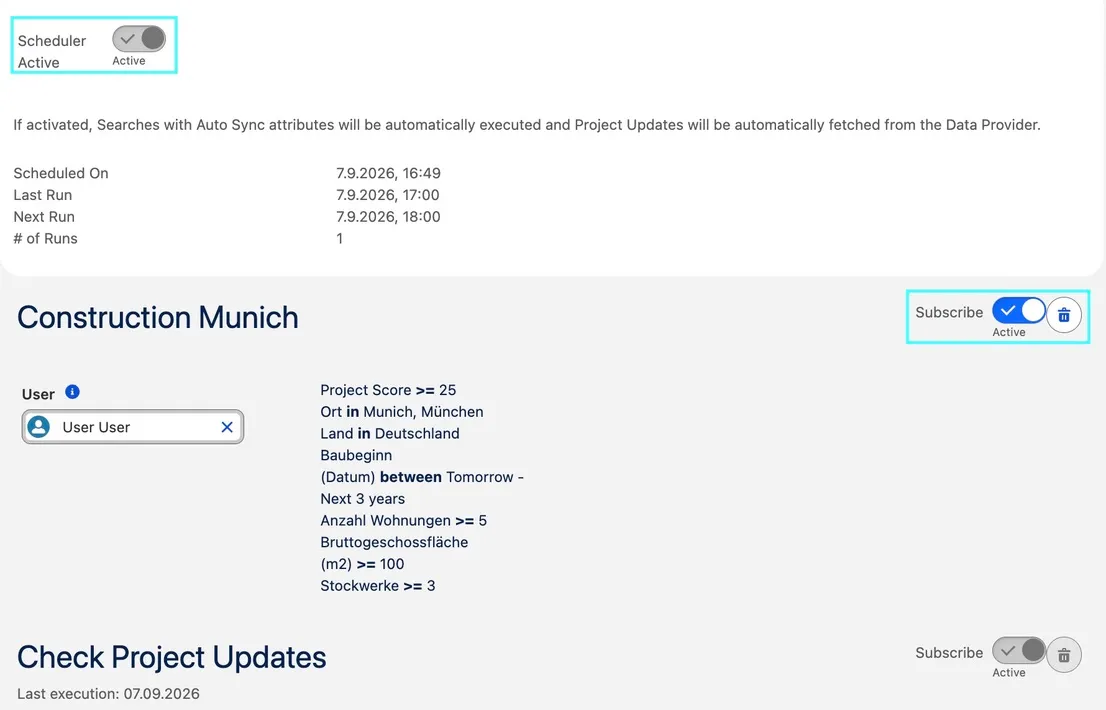
- Review the listed saved searches and the system-managed update subscription.
Create a subscription from Research
- Open MyProjectSales Hub Research.
- Enter text and/or advanced-filter criteria.
- Run the search and save it.
- Open MyProjectSales Hub Subscriptions.
- Select Subscribe on the saved search.
- New updates will be received as a Chatter notification.
Automatic updates apply the org-wide MyProjectSales mappings without a per-record review screen. The scheduler for the Update is added automatically and cannot be removed.
Review subscription activity
- Open MyProjectSales Hub Subscriptions.
- Locate the subscription by Name.
- Review Last Run.
- For a failure, ask an administrator to inspect Project Sync Queue records with a Failure status.
Screenshots
Reviewing Last Run and the affected linked record for a subscription

The list of saved searches and their update-subscription status
A Chatter notification received when the subscription gets new updates