
Import Data with Quote Line Editor
Use the import modal to load multiple rows from Excel, CSV, or pasted tabular text into the Quote Line Editor. This article focuses on the import workflow rather than general editor usage.
Use this article when
Use this article when you already know where the Quote Line Editor is and specifically need help with bulk import. For a broader walkthrough of the editor, see Use Quote Line Editor. For App Builder setup, permissions, and component configuration, see Configure Quote Line Editor.
Main tasks
- Paste source rows from Excel, CSV, or aligned text.
- Run analysis and review the detected mapping.
- Exclude rows that should not be imported.
- Apply the import and save the resulting draft rows.
Import flow
Before you start: the Import action only appears in More Actions when an admin has enabled Enable Import Function in the component configuration.
- Open More Actions.
- Click Import.
- Paste the source data.
- Click Analyze.
- Review and adjust the detected column-to-field mapping.
- Click Import.
- Save the rows in the main editor.
Enable AI-assisted column mapping
Before you start: AI-assisted import requires accepting the Consent Terms and Conditions for the Microsoft Azure OpenAI Service, in Baucore Setup → Baucore Agents. An admin only needs to do this once, and it also unlocks the other Baucore AI features (Project Lead Conversion, Project Status and Recommendation, Inquiries to Quotes, and more).
- Open the App Launcher and go to Baucore Setup.
- Open Baucore Agents.
- Review the Consent Terms and Conditions and click Confirm.
- If a Missing Company Information warning appears, click Open Company Information, then in Salesforce Setup → Company Information click Edit, complete the Security Contact and Address, and save.
- Return to the dialog and click Confirm again. AI-assisted import is now enabled.
Once enabled, pasted rows can be analyzed with AI-assisted column detection: click Analyze, and each detected column is automatically mapped to a field with a match confidence shown. Click any column header to adjust the mapping, then click Import.
Lookup (reference) fields cannot be populated through the import function. When mapping columns, only editable non-lookup fields are available as targets; lookup fields are intentionally excluded. The single exception is the Product field, which is matched automatically via the product name/lookup during import. To set other lookup fields, edit the positions directly in the grid after importing.
What to review carefully
- Delimiter and header detection.
- Column-to-field mapping.
- Match confidence shown for each AI-suggested column mapping.
- Detected groups when grouping is enabled.
- Row selection before apply.
Common issues
| Symptom | Cause / resolution |
|---|---|
| The Import action is missing | Ask an admin to enable Enable Import Function in the component configuration. |
| Products are not resolved correctly | Check the active pricebook and the lookup source setup. |
| Imported rows appear but aren’t persisted | Save the main editor after the import. |
| AI-suggested columns look generic in a trial org | The AI-suggested column layout shown in a trial org is a generic default. Column mapping tailored to a specific industry (for example, a dedicated Manufacturer column for lighting agencies) is delivered during implementation, not in the trial site. |
Screenshots
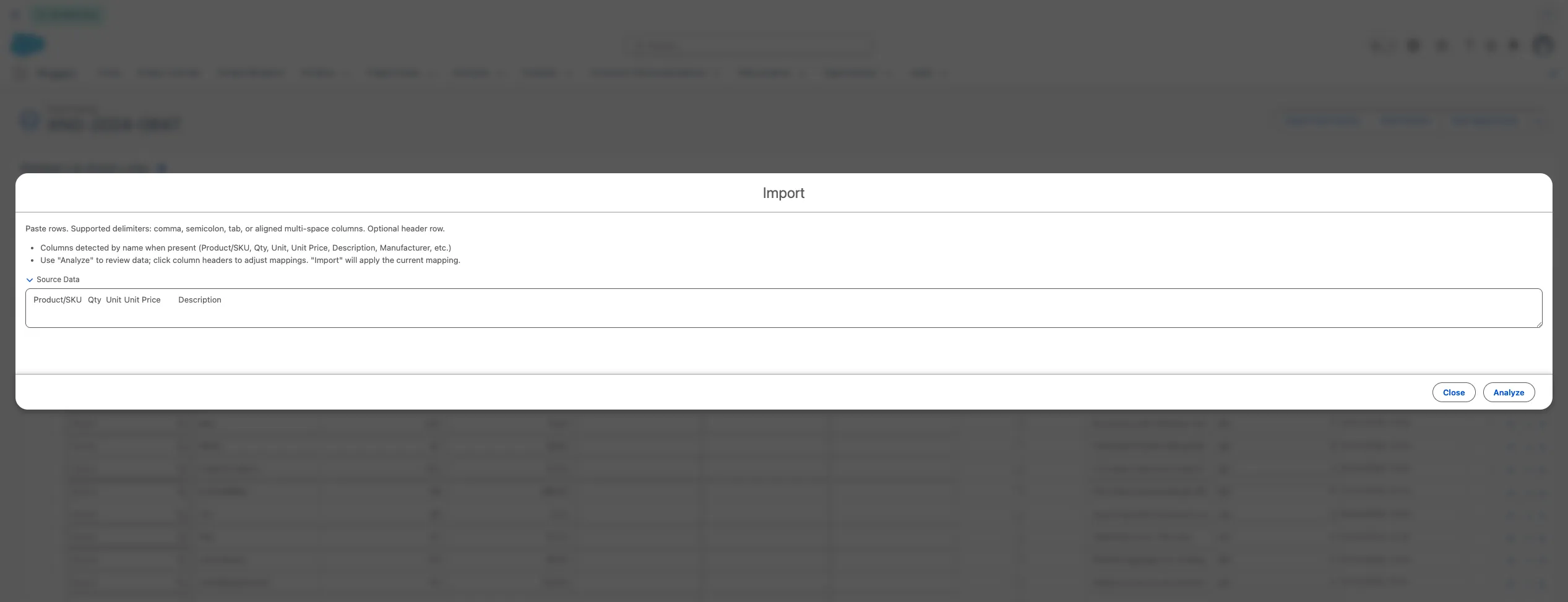
Opening More Actions → Import on the Quote Line Editor
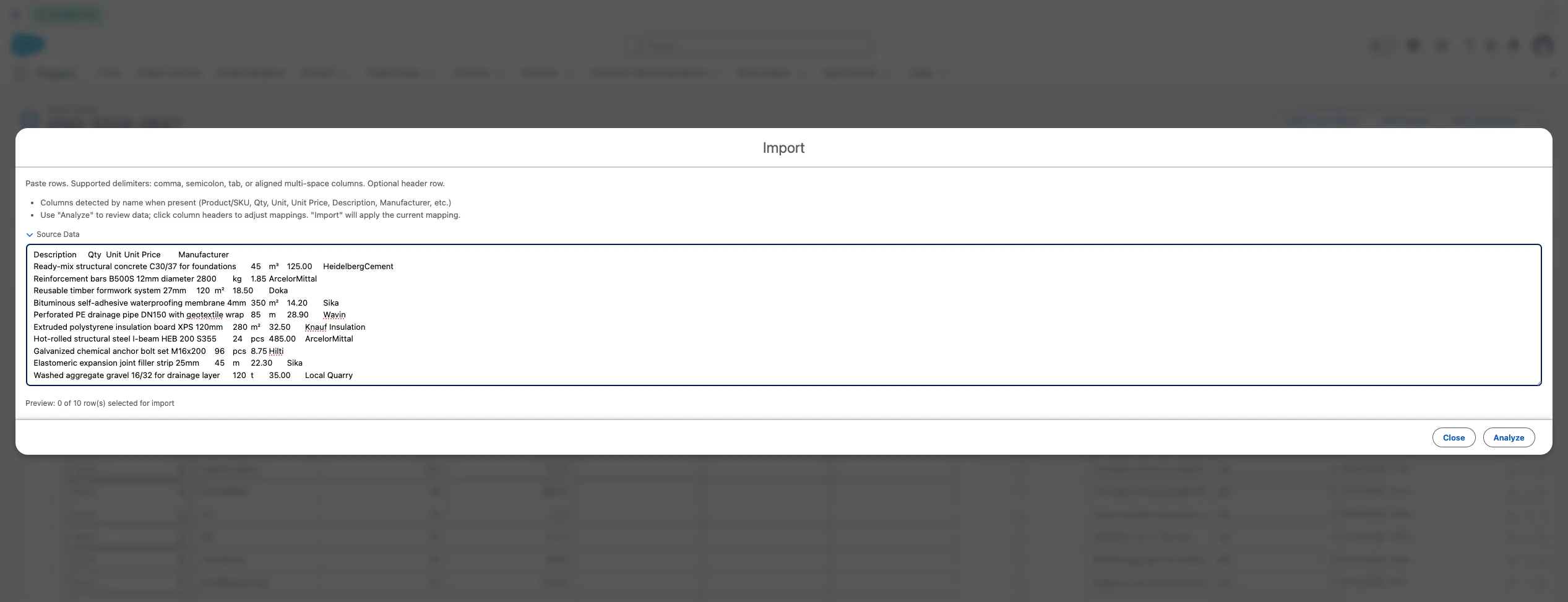
Pasting the source data to import
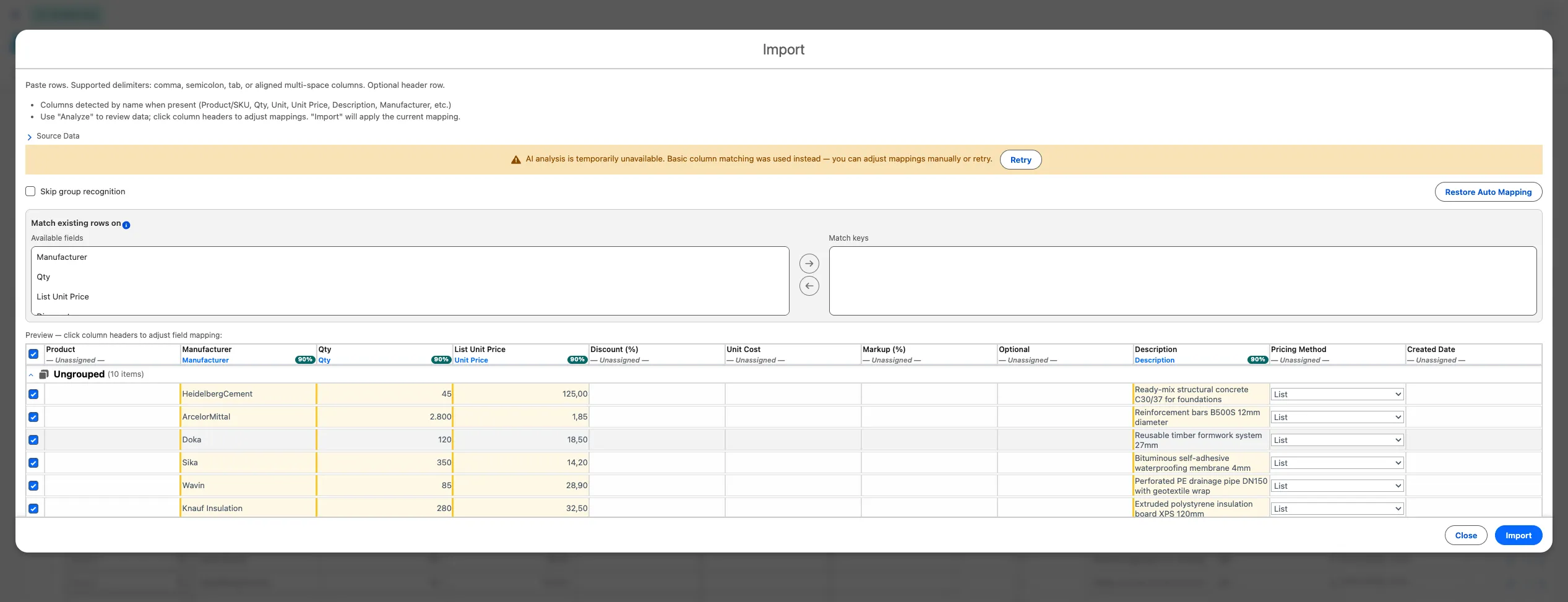
Reviewing and adjusting the detected column-to-field mapping