
Set Up Project Navigator
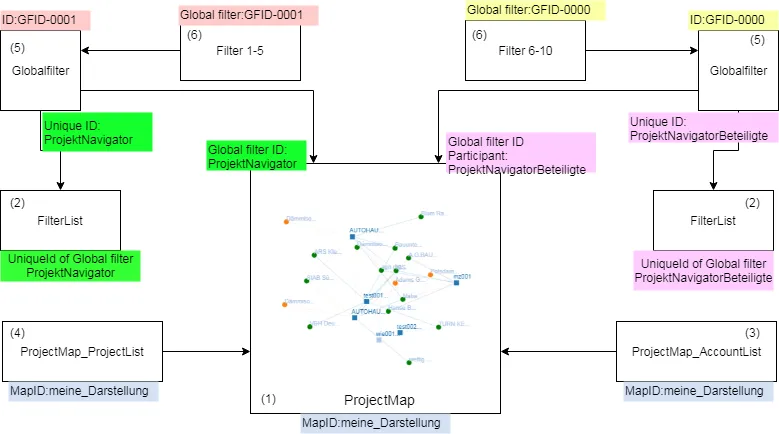
Project Navigator consists of several layout components that must be logically linked together, once arranged, in order to function:
- Coarse filter for project / account
- Graphical representation component for projects and participants (the map)
- Account list display with fine filter
- Project list display with fine filter
Configuration happens at three levels: the Lightning page layout, the Global Filter app, and Setup → Custom Labels. This article walks through each one and how the components’ settings connect.
Steps to set up Project Navigator
- Set two global filters — one for projects, one for participants.
- Create the filter(s) that back them.
- Place and configure the visual layout components.
- Name labels under Setup → Custom Labels.
- Set the project time-limit (how many days back to look).
1. Global Filter
Go to the Global Filter app and define two global filters — one for projects and one for participants.
The Unique ID value is the entry point for the ProjectMap output component. Depending on which data a global filter delivers — projects or participants — that ID is entered either in Global Filter ID for projects or Global Filter ID for participants on the ProjectMap component.
The ID is automatically assigned by the system; enter it under the filter’s Global Filter setting to establish the connection. The Label field controls the field description shown on the global filter’s UI and is set from your own custom descriptions. Each global filter can have any number of filters available in its picklist.
2. Filters
A filter retrieves data from the data source and pre-selects it in the desired form. The result is a list of project IDs or participant IDs.
| Field | Purpose |
|---|---|
| Global Filter | Takes the ID of the global filter (for projects or for participants) as an input parameter. |
| Label name | Freely chosen; the name of the filter or its function, shown as a picklist entry on the interface. |
| Default | Marks this value as the default entry shown in the list. |
| SOQL | The database query used to retrieve the list of project IDs or participant IDs. |
For SOQL syntax, see Salesforce’s SOQL documentation.
3. Place and configure the visual layout components
| Component | Key settings |
|---|---|
| ProjectMap | Height (pixels; Width is ignored) · MapID (identification name so other components can reference it) · Global Filter Name for project data · Participant Global Filter Name for participant data |
| FilterList | The Unique ID of the global filter that should deliver data to this component |
| ProjectMap_AccountList | MapID (matches the ProjectMap component’s MapID) · MaxRecord (limits how many records display at once) |
The project filter and participant filter names configured on FilterList and ProjectMap_AccountList must match the filter names set up in step 2.
4. Custom Labels
Set these under Setup → Custom Labels:
| Element | Custom Label |
|---|---|
| Field composition of the account list in the fine filter | ProjectMap_Account_list_fieldname |
| Search parameters for the Account setting | ProjectMap_Account_list_search |
| Field composition of the project list in the fine filter | ProjectMap_Project_list_fieldname |
| Name shown in the coarse filter for projects | Select_filter |
| Name shown in the coarse filter for participants | Select_participant_filter |
5. Time limit of the projects displayed
Under Setup → Custom Metadata → Baucore Settings:
| Element | Custom Label |
|---|---|
| Time limit (in days) of the projects and relations displayed | ProjectMap limit days |
This number controls how many days back projects are considered for display on the map. The calculation is based on the project’s Completed On date.
Screenshots
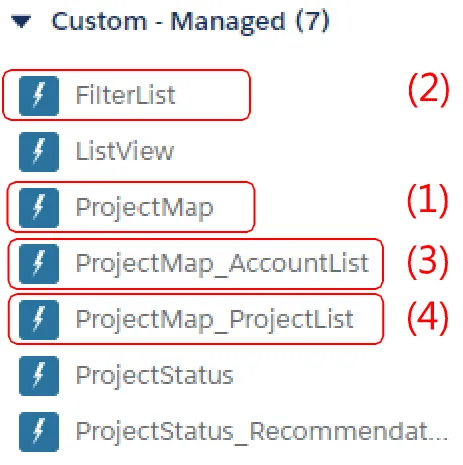
The required Lightning components
Configuring the Global Filter under Setup → Custom Labels
The Global Filter (coarse filter) setting

The participant filter for the output unit (ProjectMap)
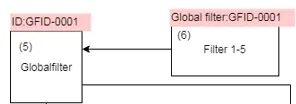
The Global Filter’s label field (e.g. GFID-001), responsible for the field description
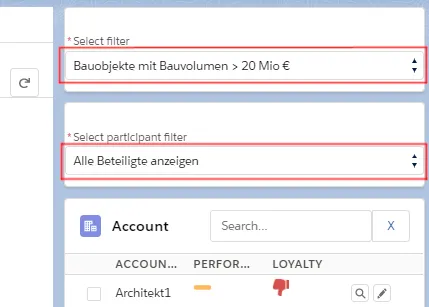
The filter that retrieves the data from the data source
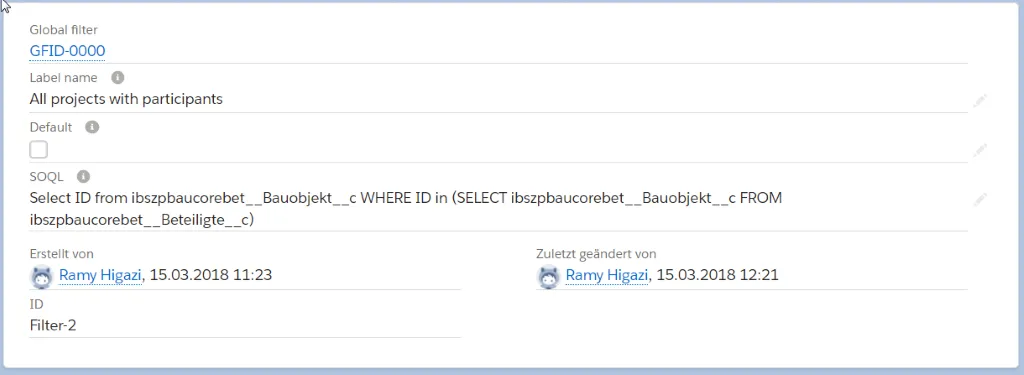
The result: a list of project IDs or participant IDs
The “Filter-2” entry as it appears in the pick list
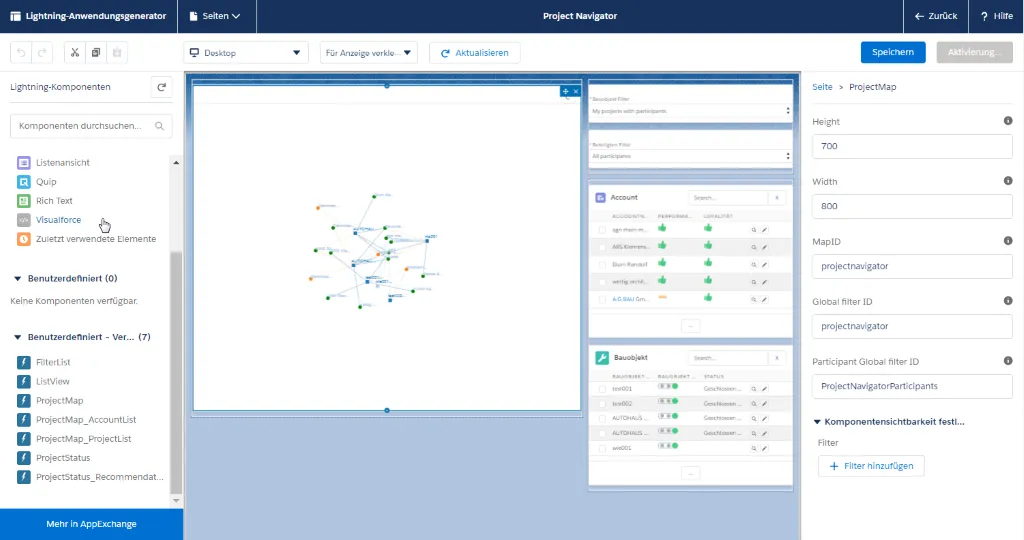
Placing and configuring the ProjectMap component (Height attribute)
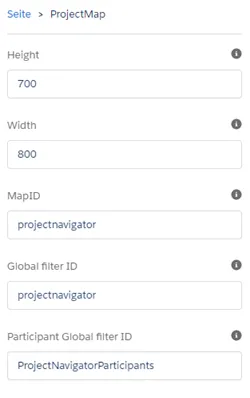
ProjectMap component attributes continued (Width, MapID)
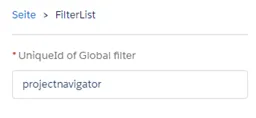
The FilterList component and its UniqueID of the global filter
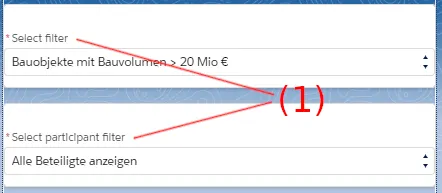
Naming the project filter and participant filter
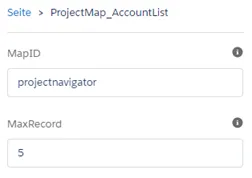
How the project and participant filters relate, as explained in chapter B (Filter)
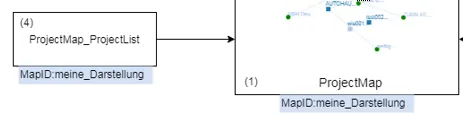
The FilterList MapID field, filled from the ProjectMap display
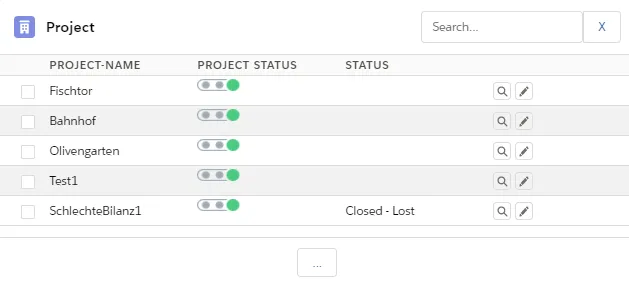
Labels of user-defined names under Setup → Custom Labels