
Use Quote Line Editor
The Quote Line Editor is the main working view for maintaining line items in Project Quotes and BOQ calculations. It gives you a grid-based interface for editing many positions quickly in one place.
Use this article when
Use this article for the main end-user workflow and the most common actions in the editor. For bulk import guidance, see Import Data with Quote Line Editor. For page setup and App Builder configuration, see Configure Quote Line Editor.
Main tasks
- Add new rows and edit existing values inline.
- Organize positions into groups.
- Create one-level parent-child structures.
- Import rows from Excel or CSV.
- Save manually or work with auto-save.
- Switch to full-screen mode for focused editing.
- Launch selected-item actions when row selection is enabled.
Main work area
The grid is built from the configured field set and supports inline editing, filtering, zoom, full-screen mode, virtual scrolling, and draft highlighting for unsaved changes.
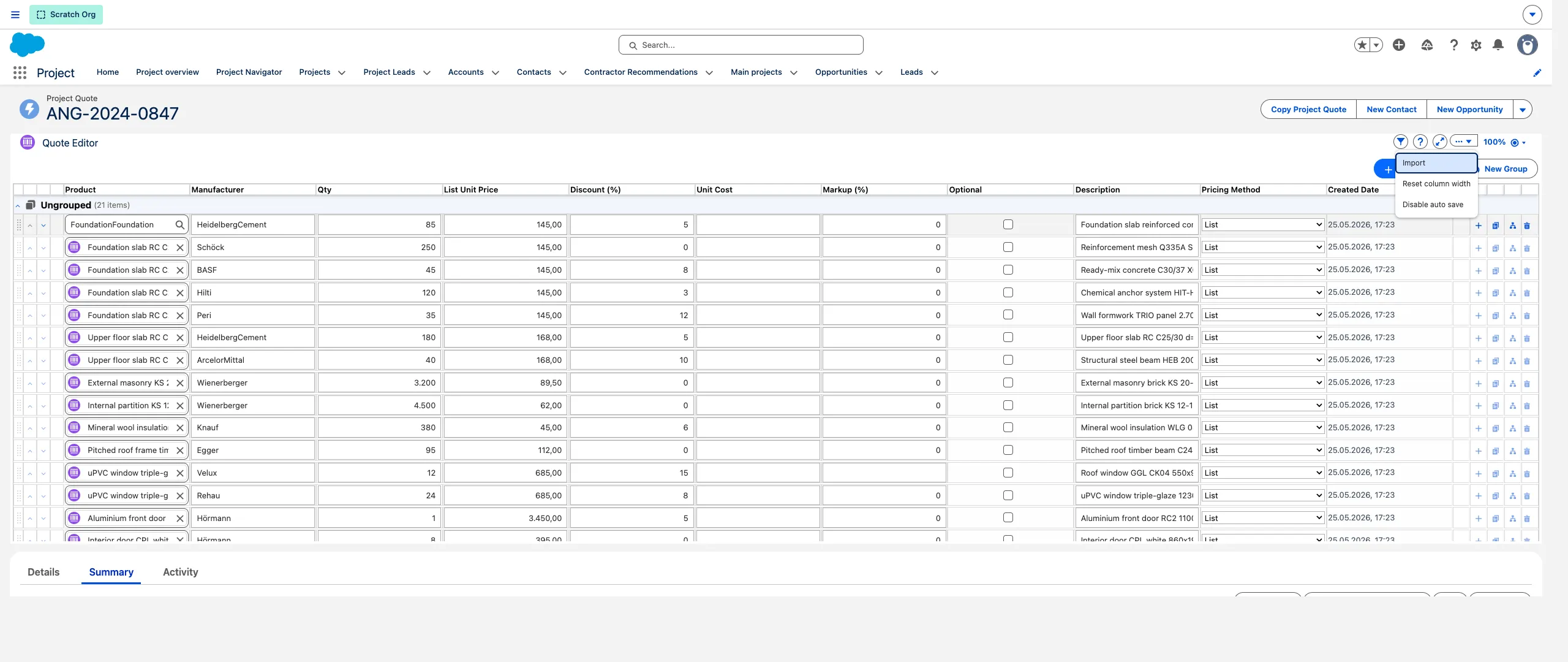
Auto-save: turn auto-save on or off from the More Actions menu. When it’s on, a short countdown appears before changes are saved. The toggle is disabled in read-only mode.
Full-screen: use the expand control to switch the editor to full-screen and back.
Groups and hierarchy
When grouping is enabled, you can keep related positions together under group headers. A single parent-child level is also supported through row actions.
Import and selection
The editor can import rows from pasted tabular data, and can send selected row IDs to a configured Screen Flow when row selection is enabled. The selected-items action appears as its own button next to More Actions (not inside the menu).
Common states
- Read-only mode allows review but blocks changes.
- Unsaved changes stay in the browser until you save.
- Missing pricebook can limit product lookup behavior.
- Configuration warnings can appear when required page setup is incomplete.
Screenshots
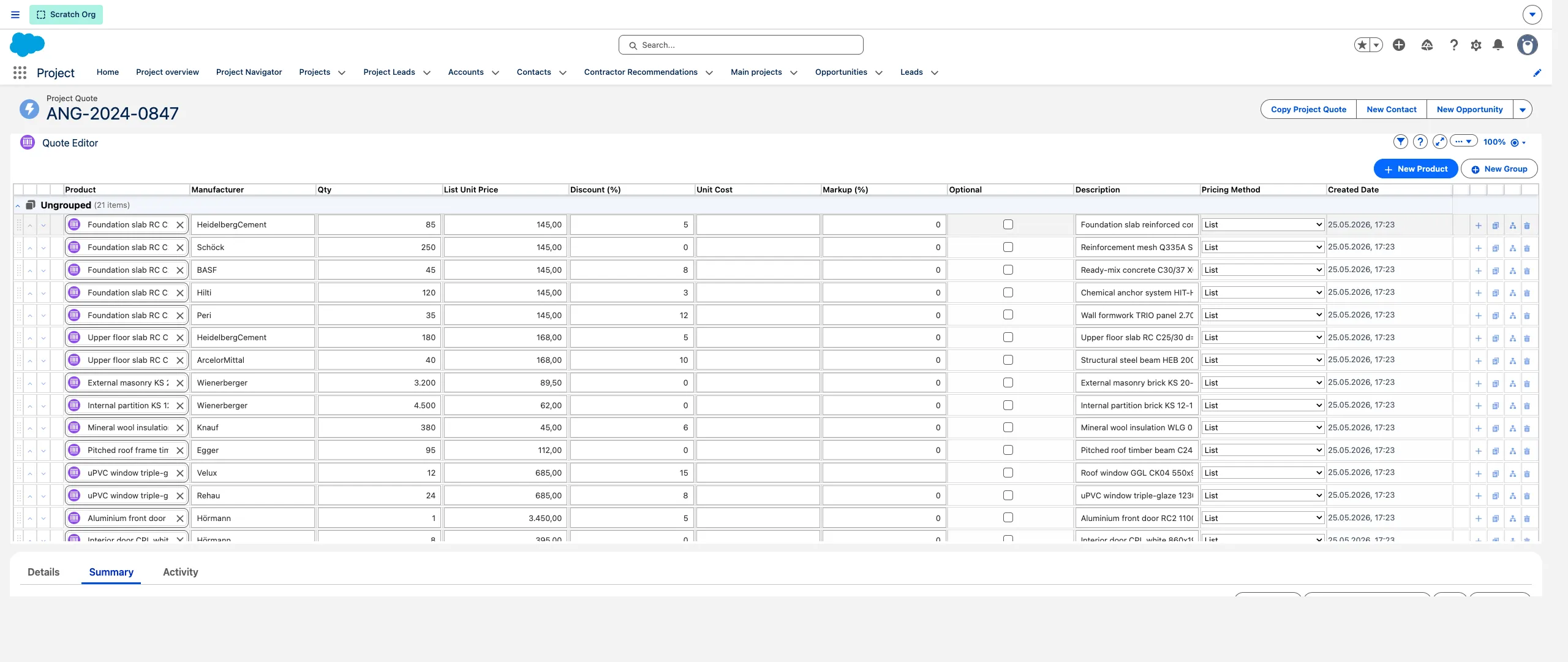
The full-screen expand control on the grid
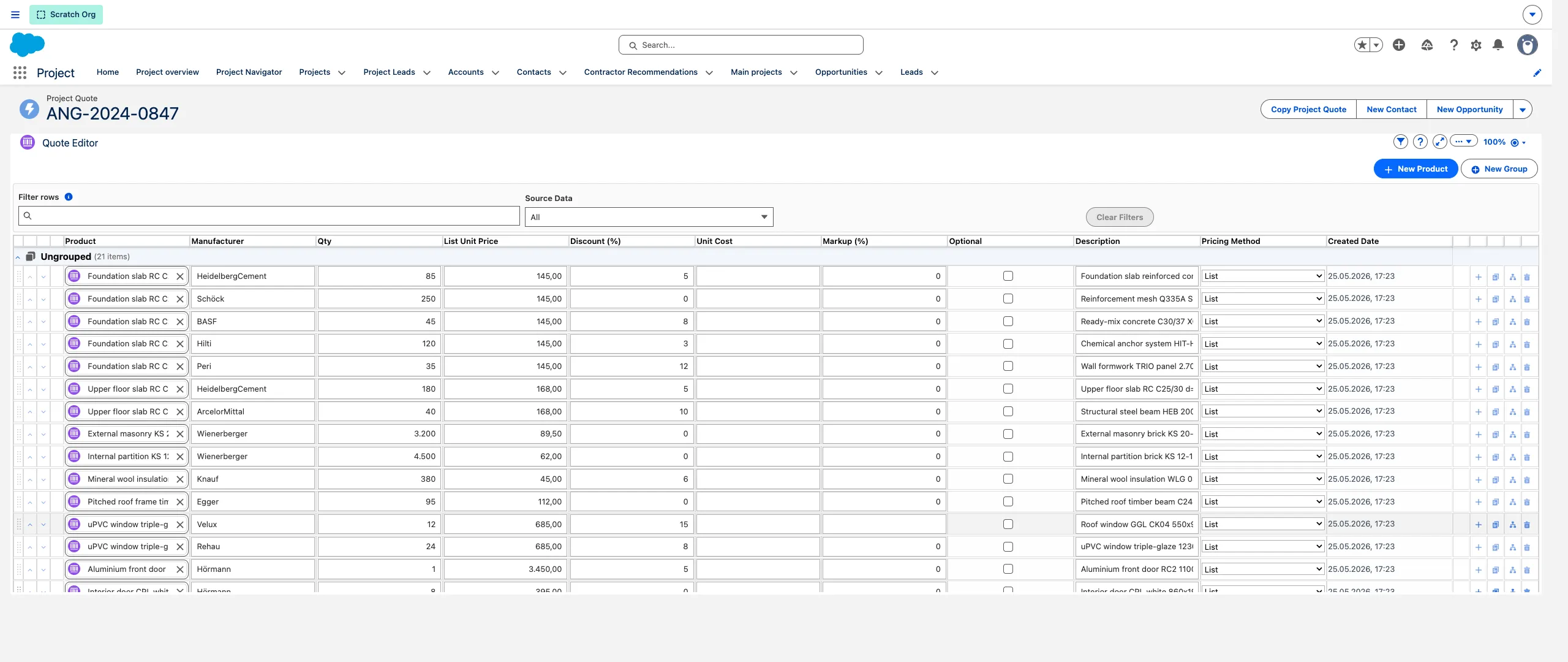
The Filtering control
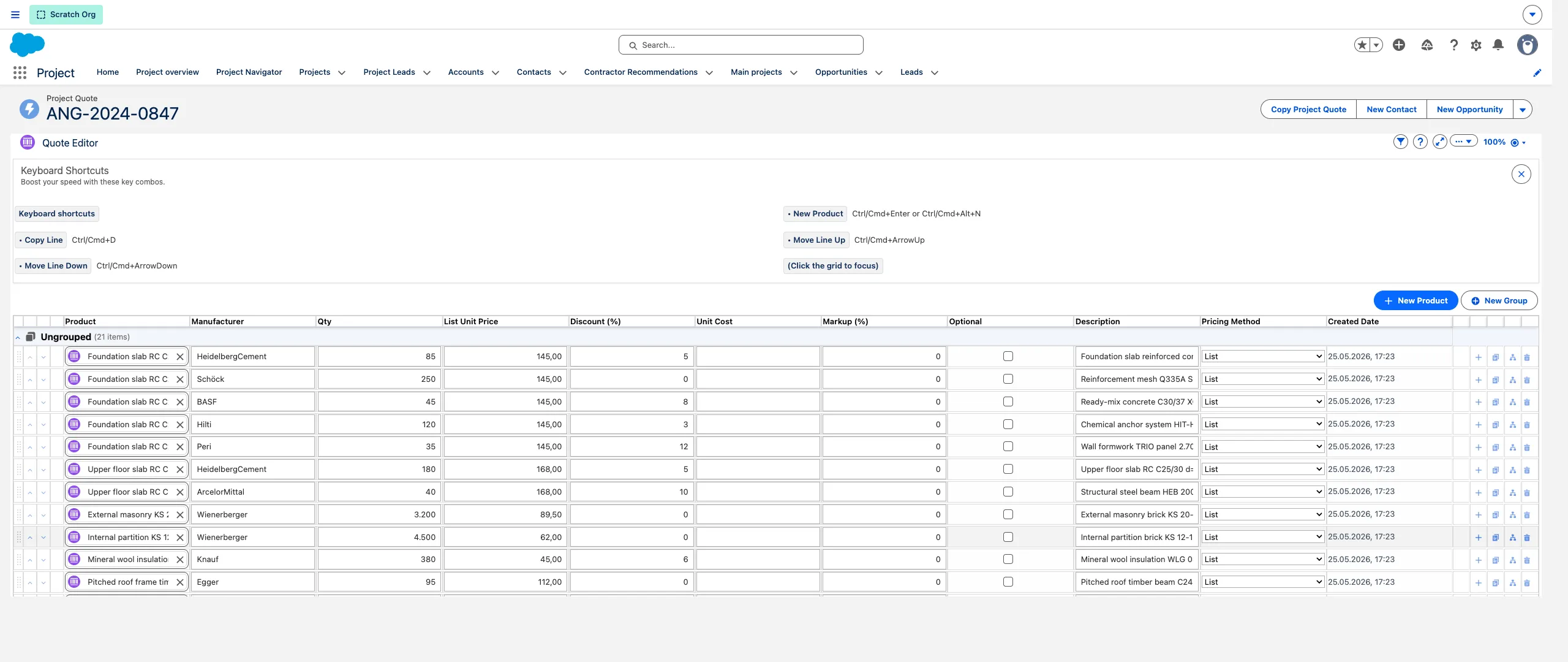
Keyboard shortcuts reference
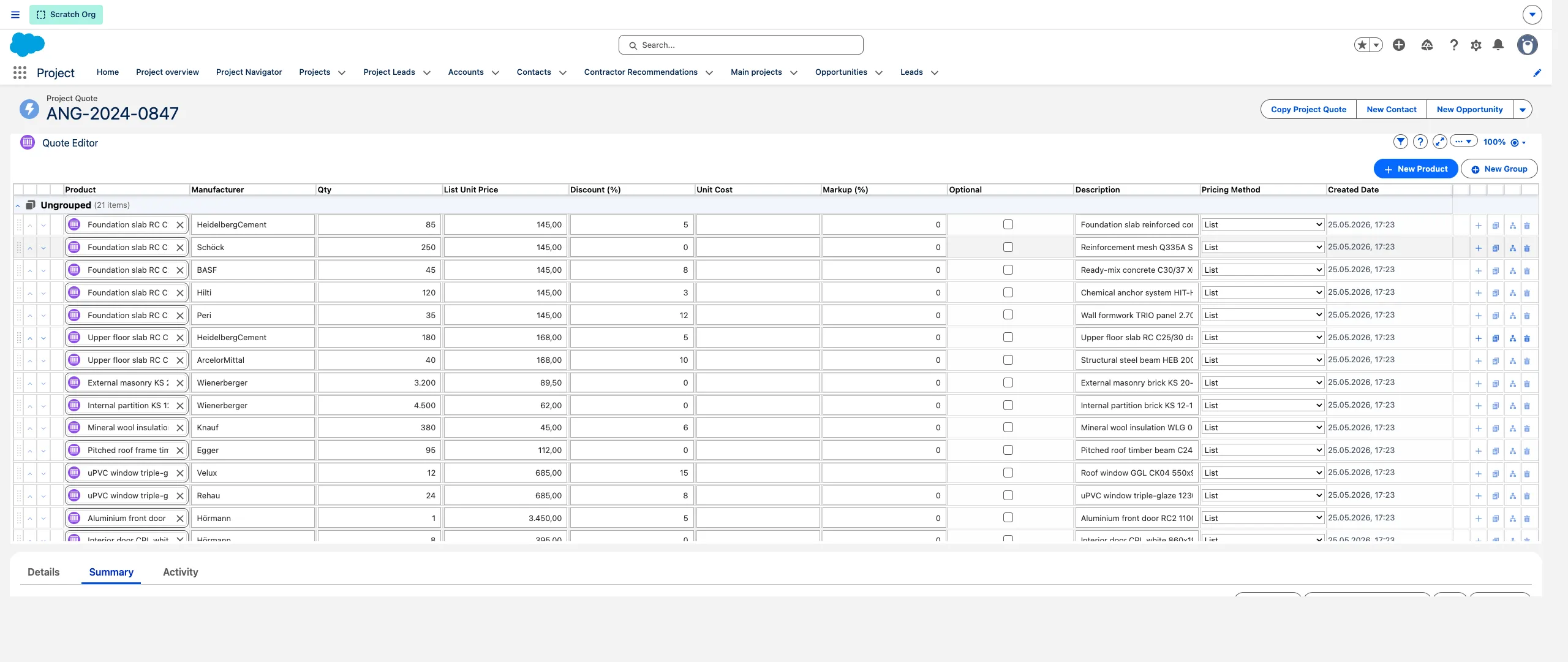
Groups and hierarchy — related positions kept under group headers
The dedicated button shown next to More Actions (not inside the menu)